Connect the Chrome extension to Fyncha
Once the extension is installed from the Chrome Web Store, you need to pair it with the Fyncha app using a local token. Three steps, about a minute.
- 01
Open the Fyncha extension in Chrome
Click the Fyncha icon in the Chrome toolbar. If you don't see it, open the puzzle menu 🧩 in the top right and pin Fyncha to keep it handy — or go to chrome://extensions and click the Fyncha button.
- 02
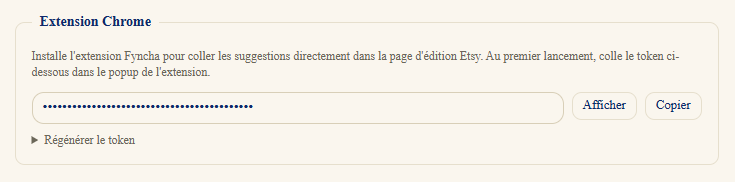
Copy your Fyncha token
In the Fyncha desktop app, open Settings → Chrome extension. Click « Show » to reveal the token, then « Copy ». This token stays local and is only used to authorize the extension to talk to your app on 127.0.0.1.
- 03
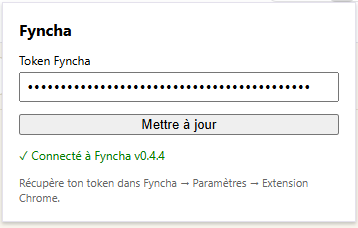
Paste the token into the extension
Go back to the Chrome extension popup, paste the token in the « Fyncha token » field, then click « Update ». You'll see « ✓ Connected to Fyncha » appear — the extension is ready to push proposals field by field on Etsy.
If you regenerate the token
If you click « Regenerate token » in Fyncha, the Chrome extension will lose its connection. Just paste the new token into the extension to reconnect it.